
OB9 LEAGUE HELP
Here you can find help for league-related actions and explanations of league activities.
How to Register for an Old Back Nine League Event
This handy guide will step you through the sequence required to register for one of the Old Back Nine league golf events. We’ll go through the steps for casual event and fun game registration, as well as for tournament play. Each of the events require the same steps until it comes to the specifics of the day’s activities. For registration purposes, fun game events will follow the same sequence as casual stroke play. Tournaments are slightly different, in that we’ll want to know if you’re planning on playing with a named partner, and if you will be joining us for the post-round lunch. We’ll also want to know if you’ll be walking with a hand cart or riding a power cart during the event. This information helps us set up foursomes for more efficient play.
Getting to the event calendar to register for an event:
When you log on to the oldbacknine.memberplanet website, you will be taken to a landing page that displays your profile and the event calendar. This is your Dashboard. From there, you can do one of two things to register for an upcoming event:
- Sign up for an event from the Dashboard, OR
- Click on the “Home” link along the top of the page. This will take you to the Old Back Nine Men’s & Women’s Golf Clubwebsite’s ABOUT US page, with all of the menu options displayed across the top of the page. When you select the EVENT REGISTRATION tab under the EVENTS menu, you'll see the same calendar of upcoming events displayed.
Did you know? If you don't plan on attending an event, there is no need to RSVP with a "No" in the first place. You can just ignore the email invitation and the link within.
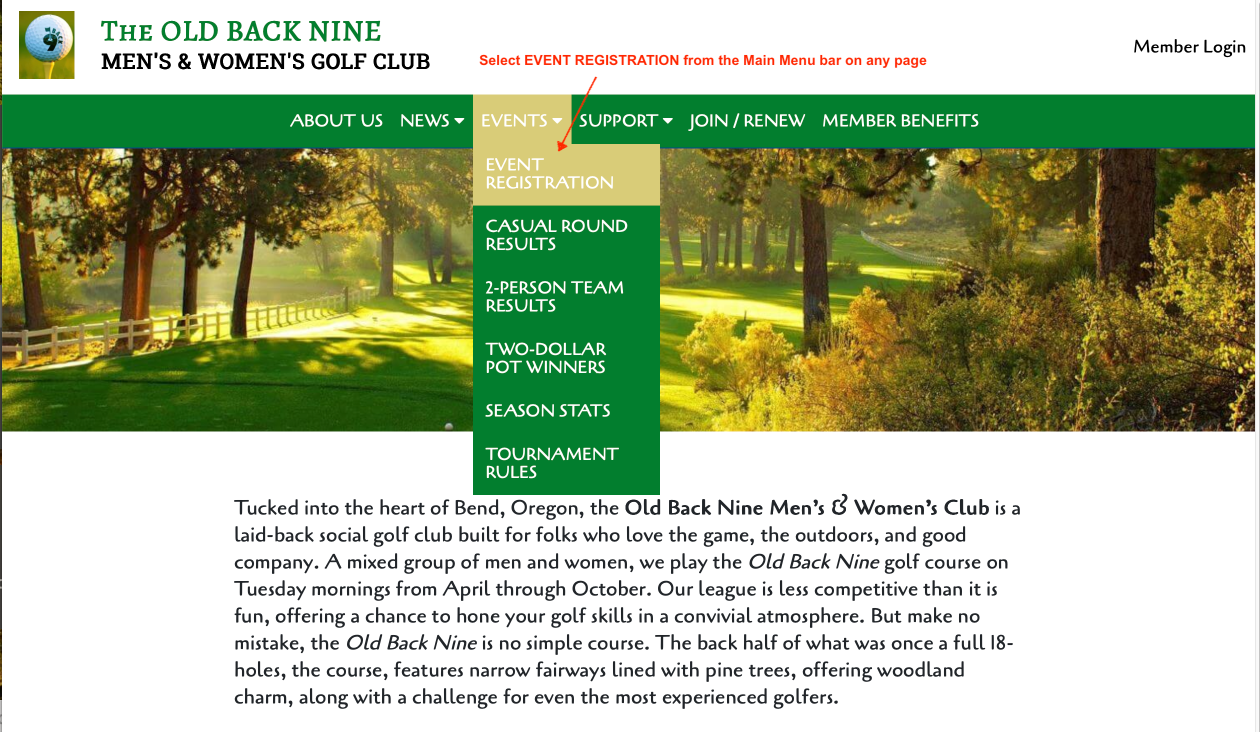
oldbacknine.memberplanet ABOUT US page with EVENTS menu options
Either of these methods is acceptable, as long as you’ve got the calendar in front of you.
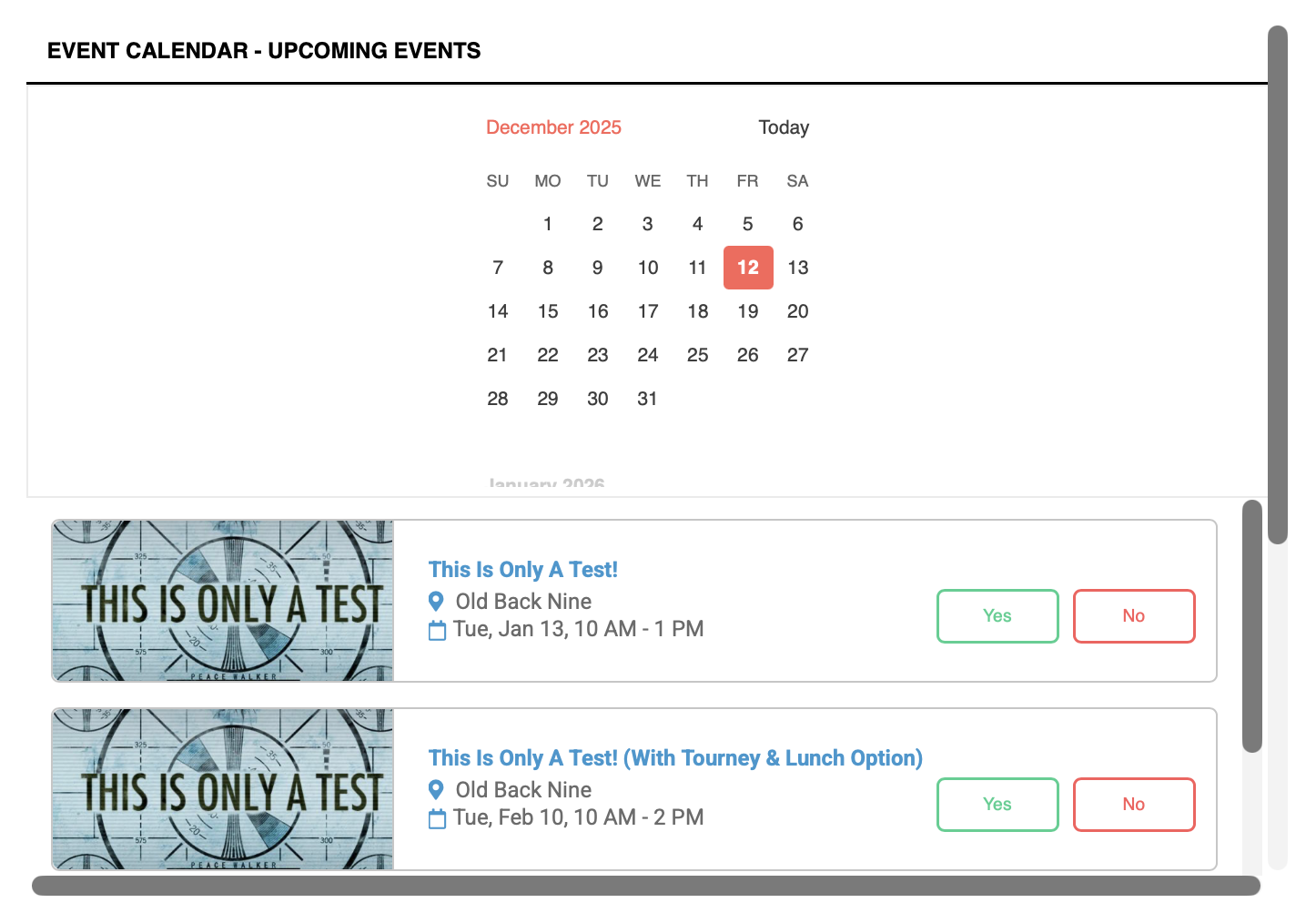
Sample Event Calendar
Note that during the season, events will NOT be available for registration until 8 days before the event (midnight the Sunday prior to the week of the event). Upcoming events that are not yet open for registration will be annotated with the statement “RSVPs Open <date><time>
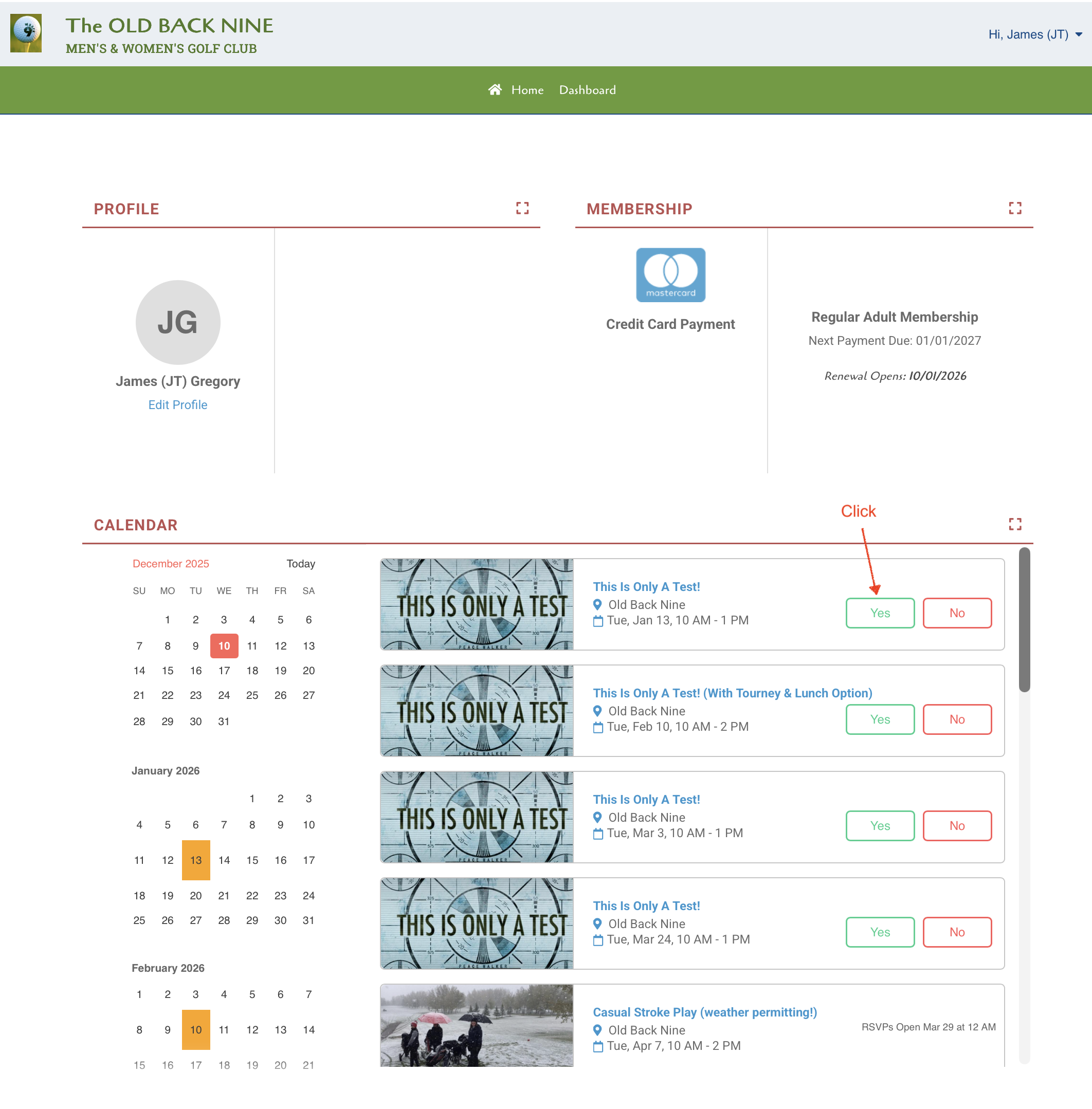
Dashboard calendar (same as will appear on EVENT REGISTRATION page)
- Select "Yes" from any of the available events. This will take you to the event page. Note that if you have not logged in prior to your event selection, you won’t be allowed to go beyond the event page that will be displayed.
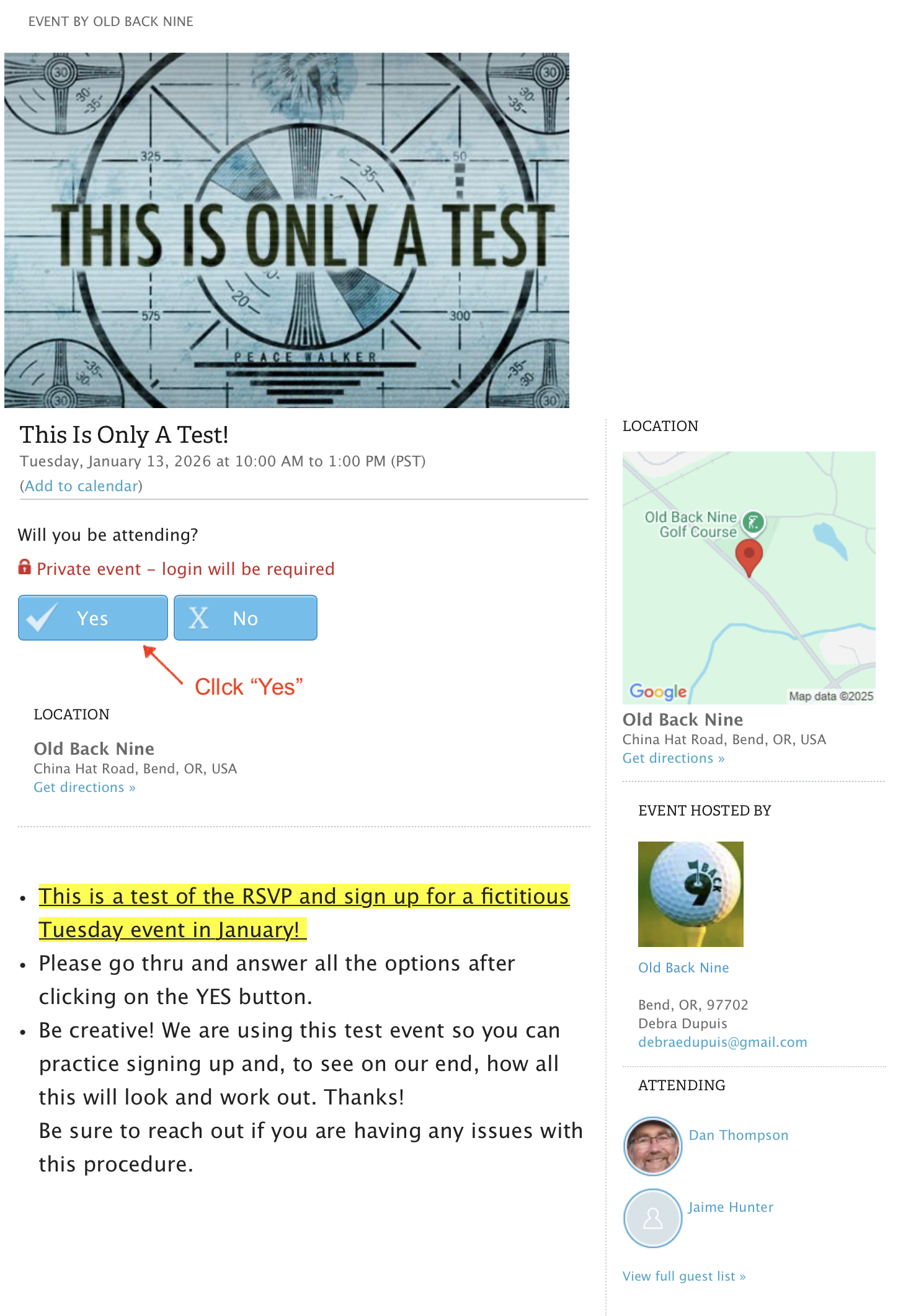
Sample EVENT page (Casual Stroke Play event)
2. Click on "Yes" again. It will bring up a small window to confirm your ID.
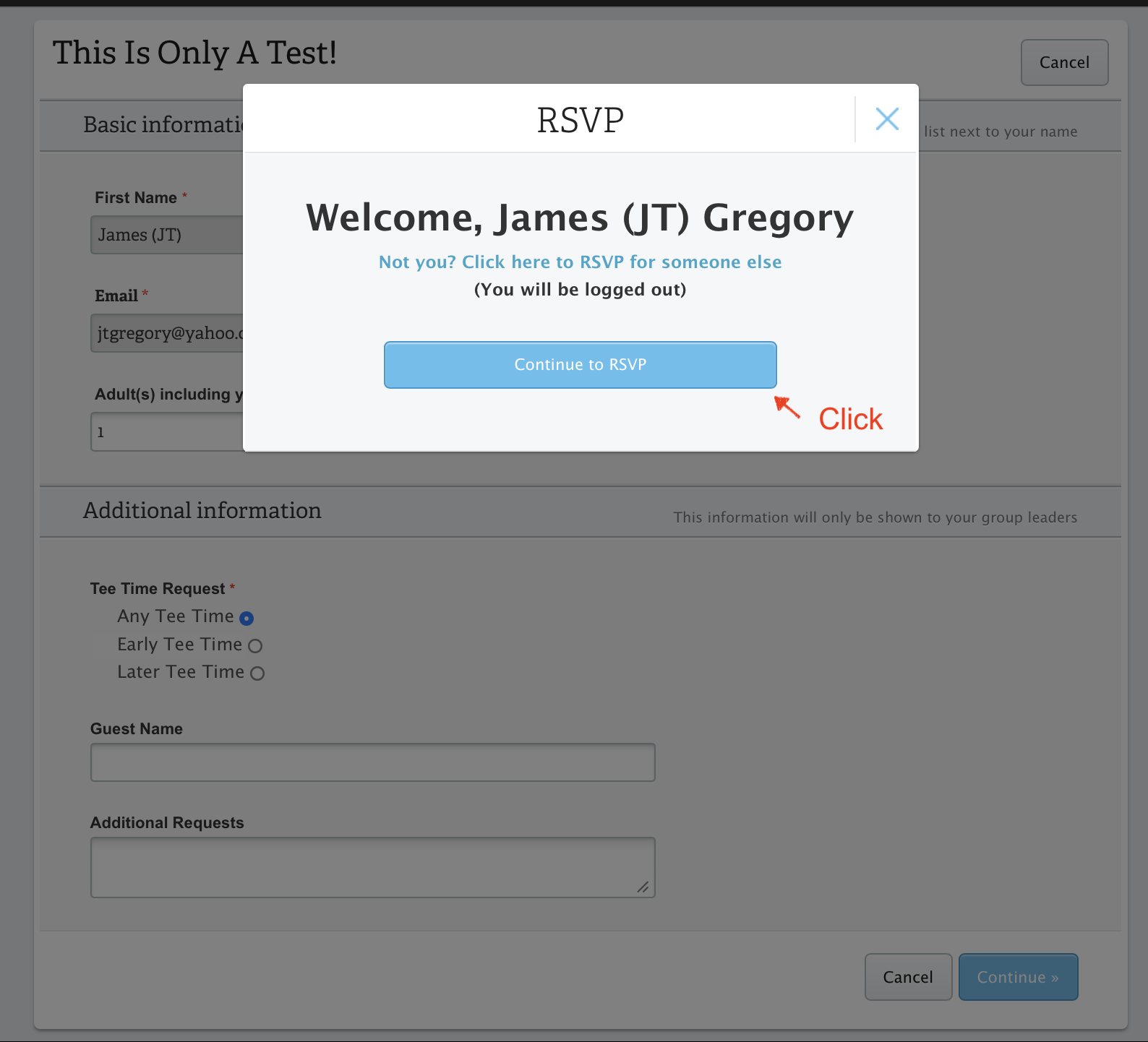
ID Confirmation
3. Click on "Continue to RSVP" and the RSVP (registration) window will open. The window for Casual Stroke and Fun Game events will be different than the one for Tournaments. We’ll cover each in turn.
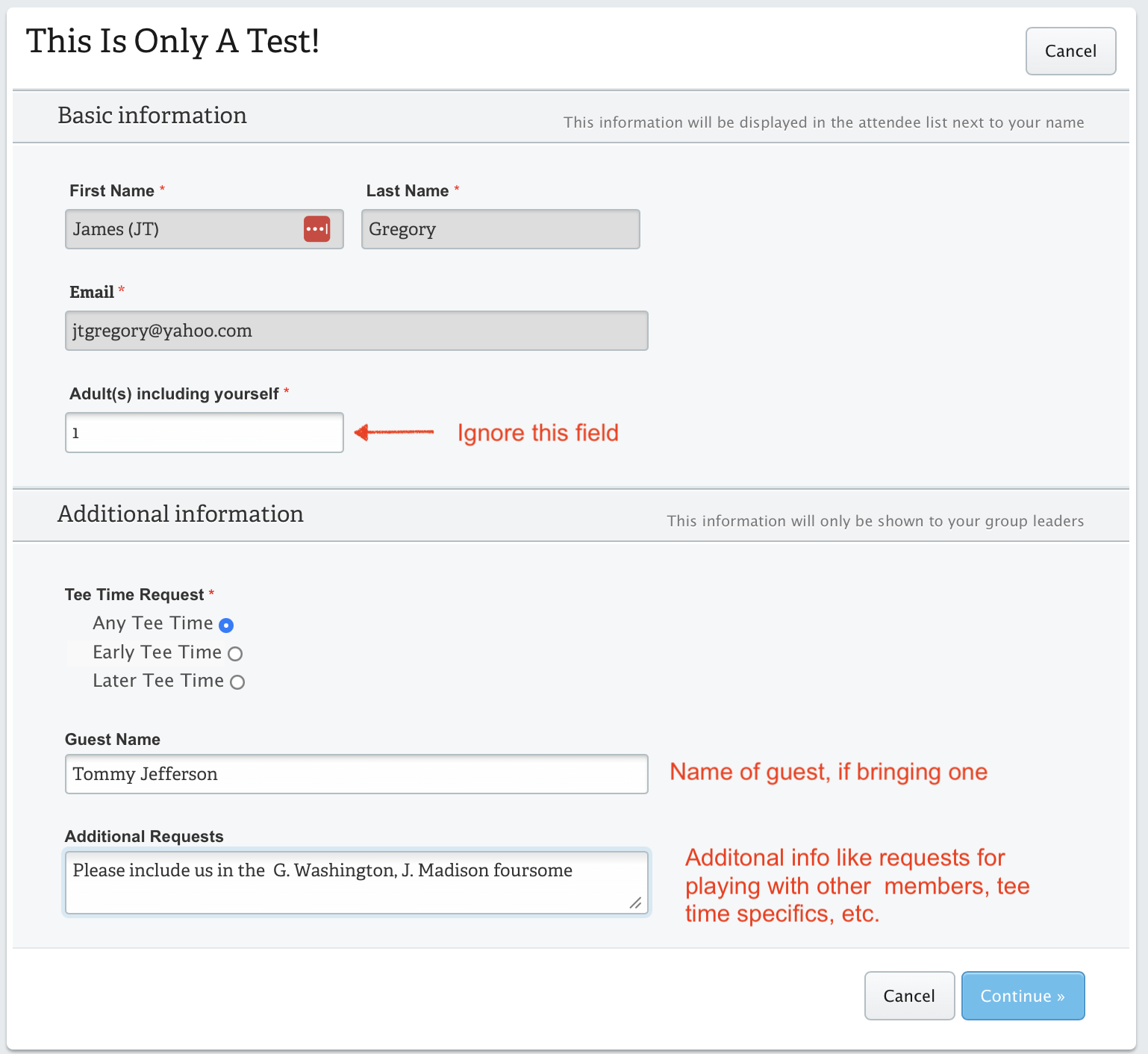
RSVP Information for a Casual Stroke or Fun Game Event
4. Casual Stroke or Fun Game event: Your name and email address will be displayed. The above example is for a casual stroke event. Let’s review those options first. To register for the event:
a. Ignore the “Adult(s) including yourself” field. We’ll handle the number of attendees in a separate calculation.
Under “Additional Information”
b. If you’d like to request an earlier or later tee time, select the appropriate radio button
c. If you’re bringing a guest (one allowed per member), enter the guest’s name. If not, leave the field blank
d. If you’d like to make any other additional request, you can do so in the “Additional Requests” box. Ask to play with other members, get more specific about your tee time, or any other scheduling info you think we should know. Or leave us a compliment.
e. Click “Continue” when you’ve finished adding information. A confirmation window will open.
NOTE: Simply putting a partner request in your RSVP will not register that partner. Both players will have to log on to their account and go through the registration process.
(Go to step 6)
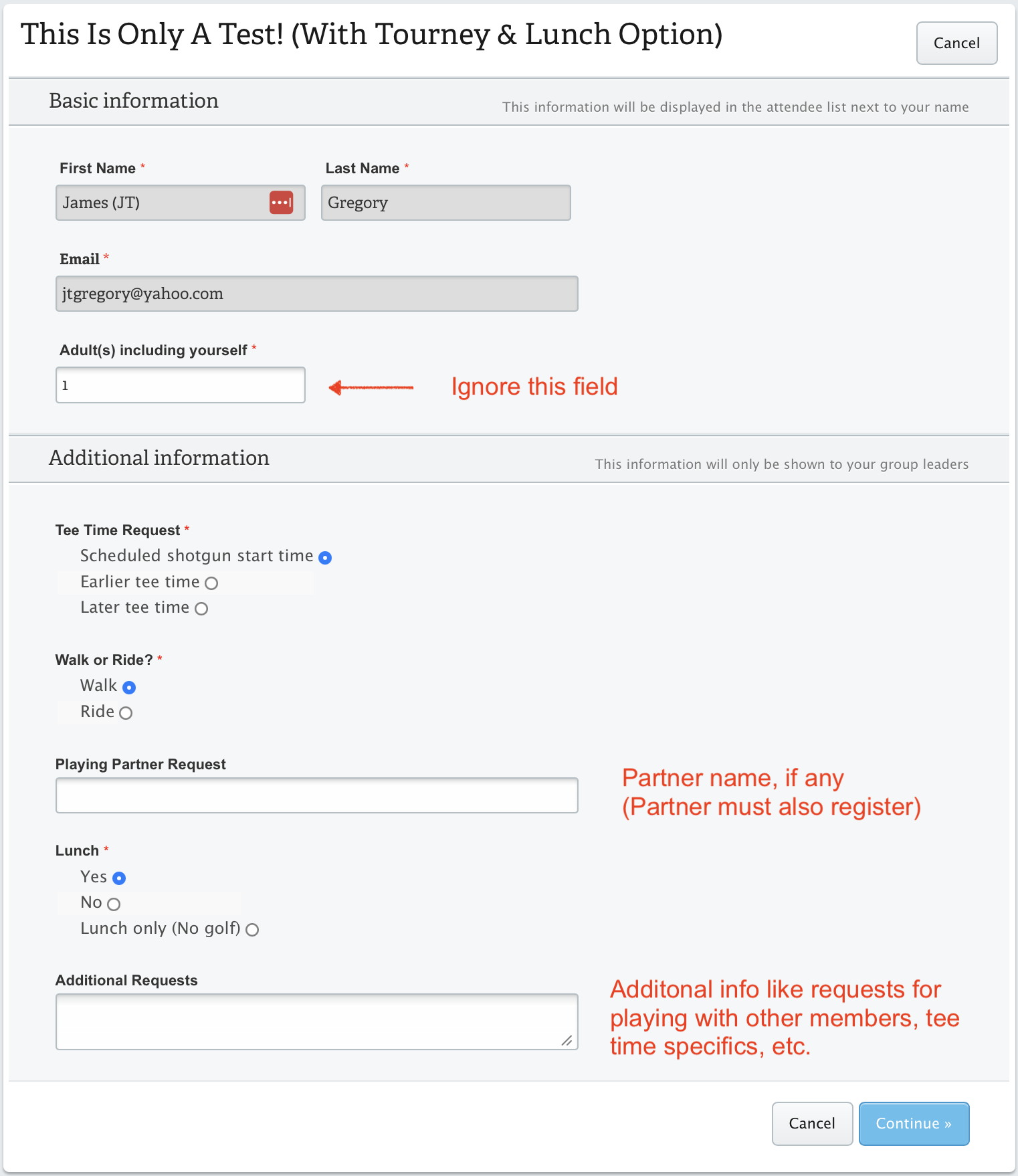
RSVP Information for Tournament Event
5. Tournament event with lunch and shotgun start: Your name and email address will be displayed. The above example is for a tournament event. Let’s review the options. To register for the event:
a. Ignore the “Adult(s) including yourself” field. We’ll handle the number of attendees.
Under “Additional Information”
b. If you’d like to request an earlier or later tee time, select the appropriate radio button. Since this will be a shotgun start event, you’re early or late tee times will be within 10 or 20 minutes of the scheduled shotgun start time.
c. Choose the appropriate walk or ride option. We’ll use this when creating foursomes for efficiency and rate of play purposes.
d. If you’re requesting a partner, enter the partner’s name. If not, leave the field blank. Be aware that your partner must also complete a registration RSVP requesting you as a partner, or your partnership will be invalid, and you’ll have a partner drawn for you.
e. Choose your lunch attendance option.
f. If you’d like to make any other additional request, you can do so in the “Additional Requests” box. Ask to play with other members, get more specific about your tee time, or any other scheduling info you think we should know.
g. Click “Continue” when you’ve finished adding information. A confirmation window will open.
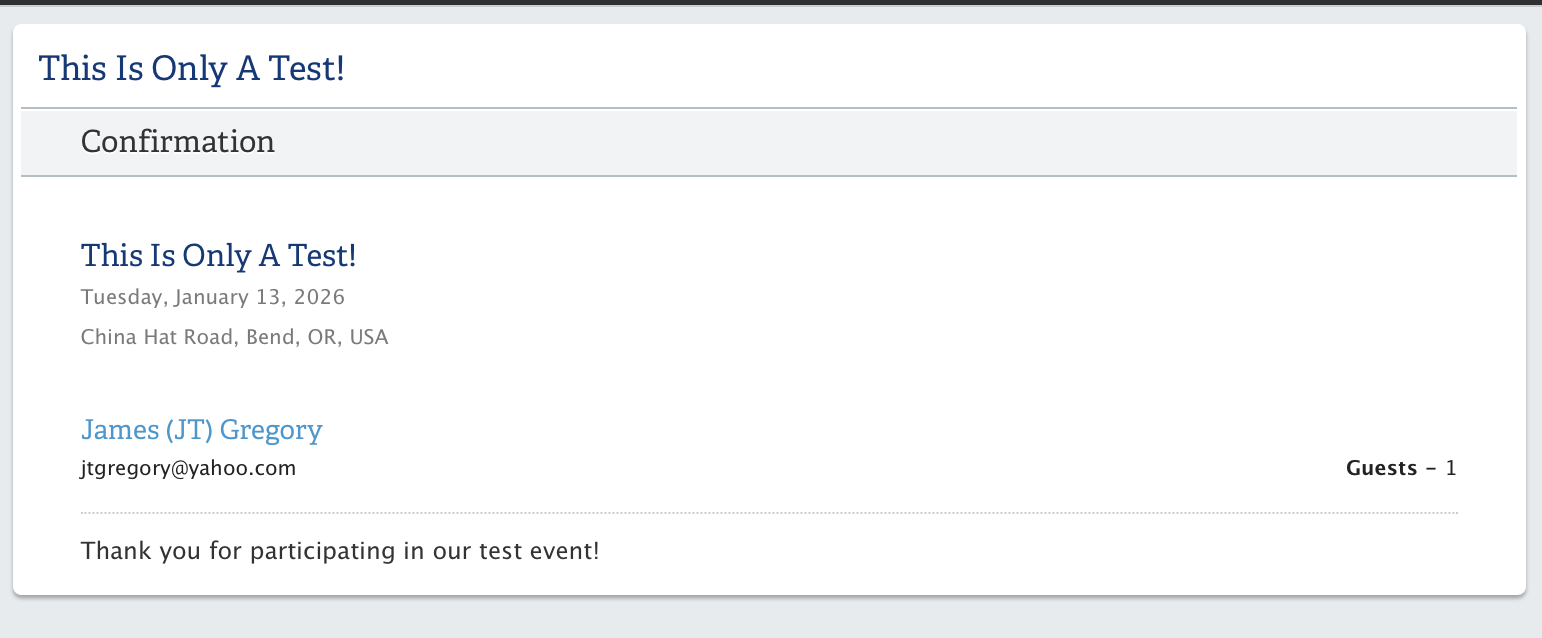
RSVP success confirmation
6. If you’re on your computer’s browser, the Event page will have opened in a new tab. The rest of the registration and confirmation processes will occur on that page. Close the confirmation window and you’ll be returned to your Dashboard page or the calendar on the Old Back Nine’s registration page. If you’re using a phone, you might have to close the window and relog in to your Dashboard.
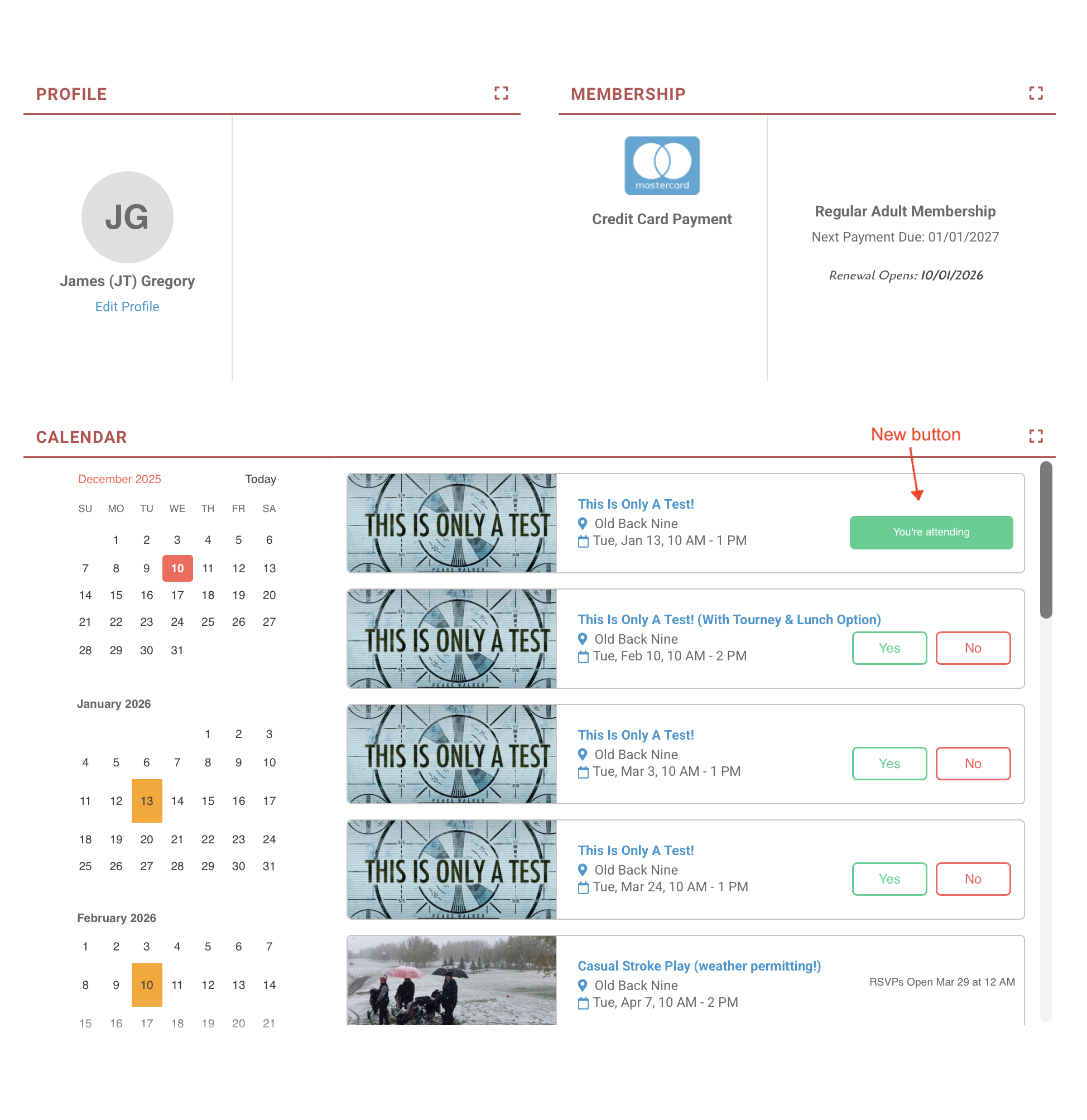
Dashboard with attendance confirmation for first event
7. Note that the previous YES and NO buttons have been changed to a single “You’re attending” button for the event you registered for.
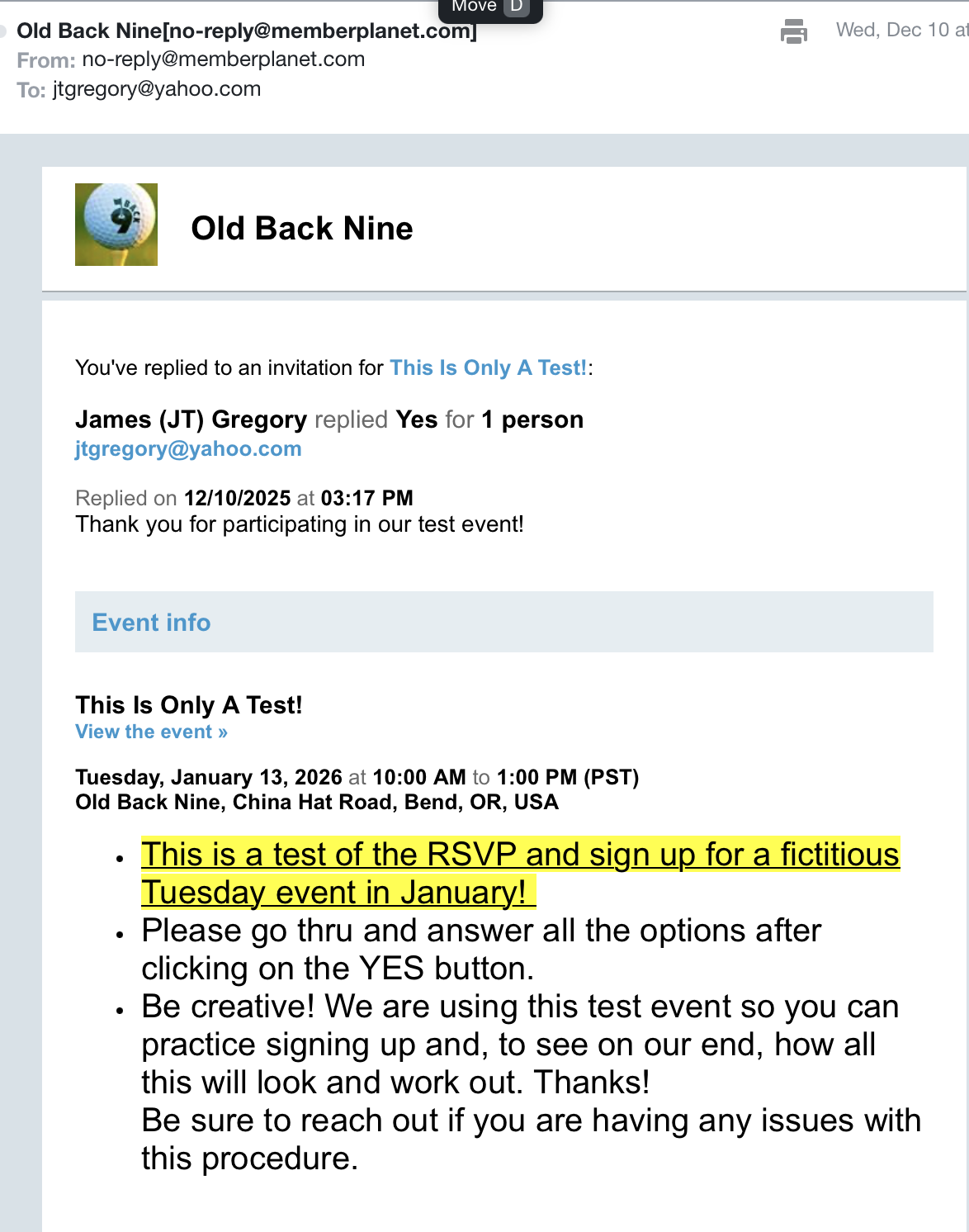
Sample confirmation email
8. You’ll receive an email shortly confirming your registration for the event you just RSVPd to.
You’re all signed up! Look for the pairings email from its usual source, ob9league@gmail.com, sometime on Monday afternoon.
If you need to cancel before the event, please see “How to cancel an event" below.
How to CHANGE your registration for an event
To add or change something on an RSVP that you previously submitted, and the event is still open, you will go through similar steps to when you first registered. YOU MUST BE LOGGED ON to make any changes.
After logging on, access the Event Calendar on your Dashboard/Login page, or select EVENT REGISTRATION under the EVENT tab. On the Event Calendar, scan for the event you want to change or cancel. The YES/NO buttons that were displayed before you RSVPd will have been replaced by a green "You are attending" button.
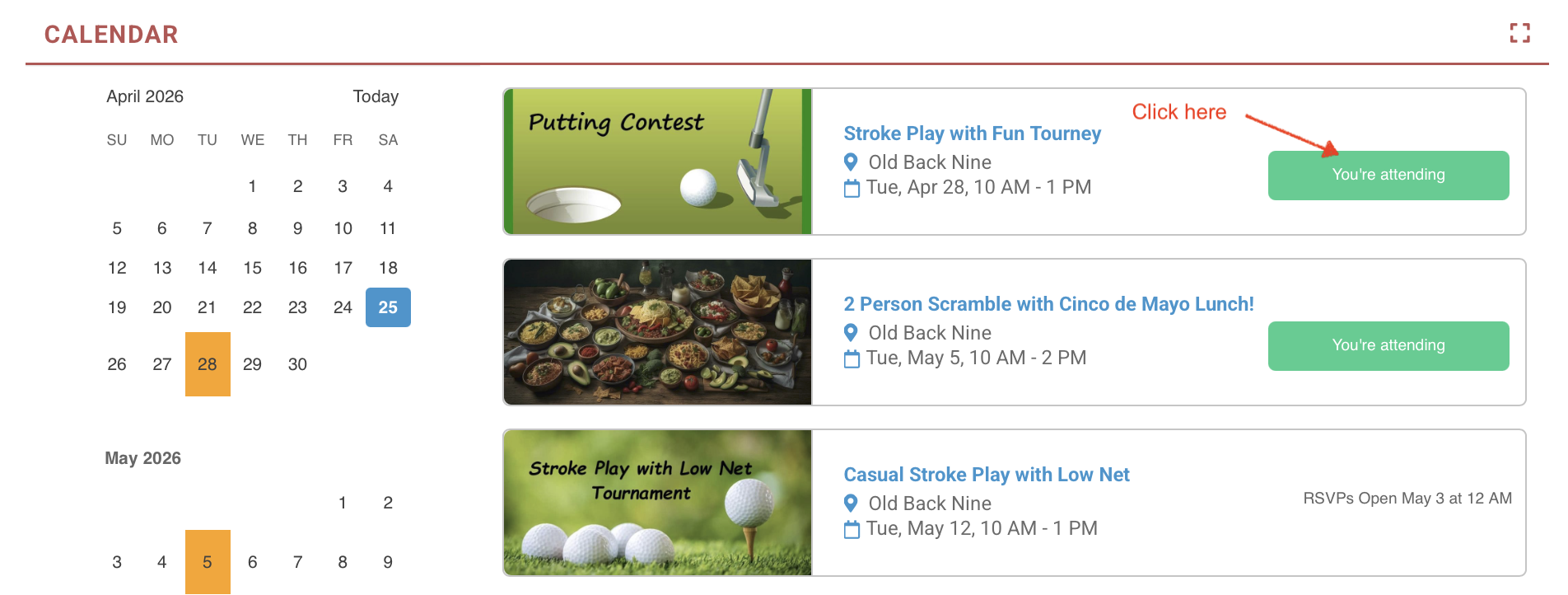
Event calendar with registered events
1. Clicking on the green button will take you to the same Event page that you previously used to register. On a computer browser, it will open in a new tab.
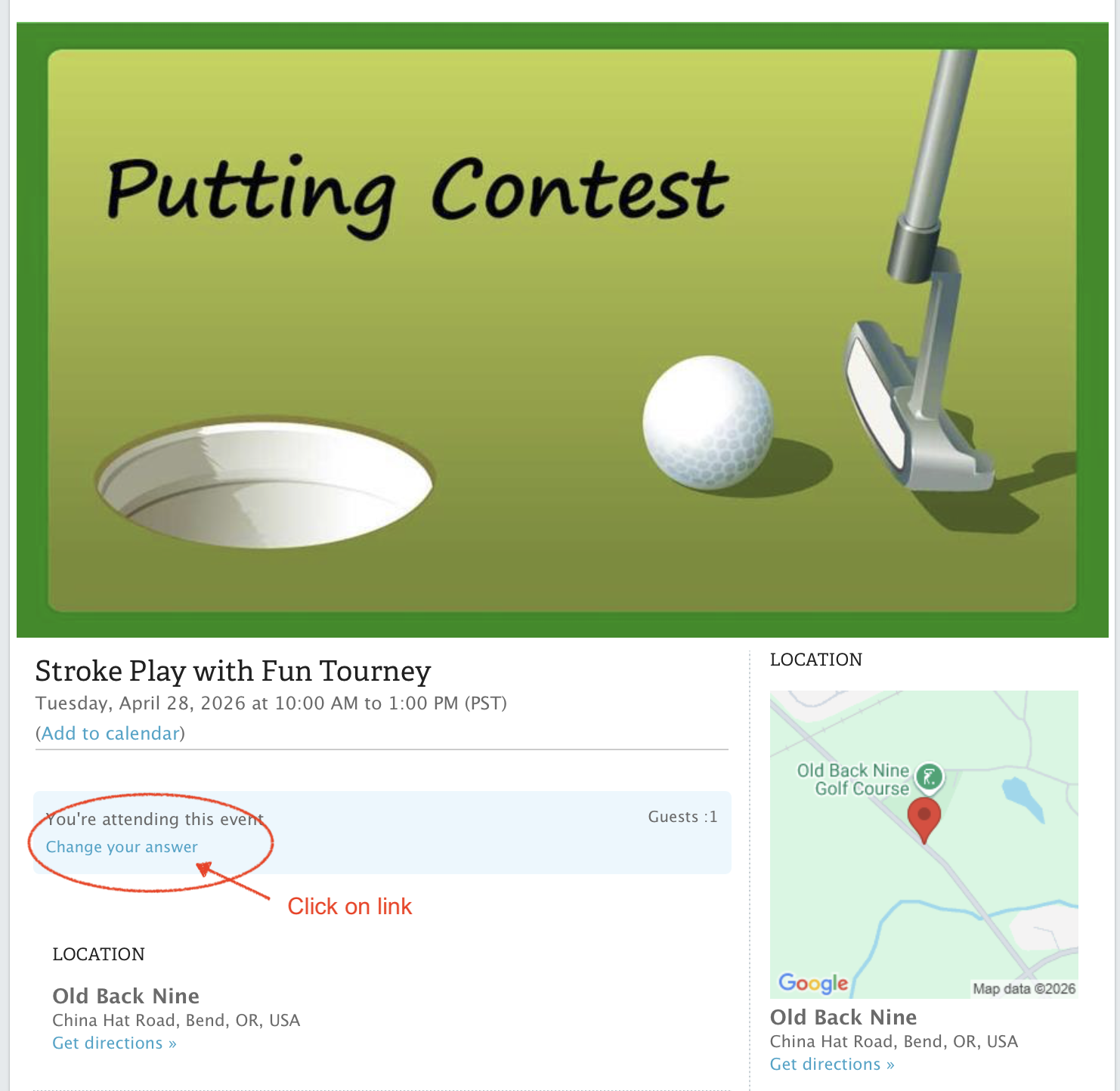
Event Page prior to requesting changes
2. Below the banner graphic and under the event's title on the upper left, click on the link titled "Change your answer." The link changes to two blue buttons, labeled YES and NO.
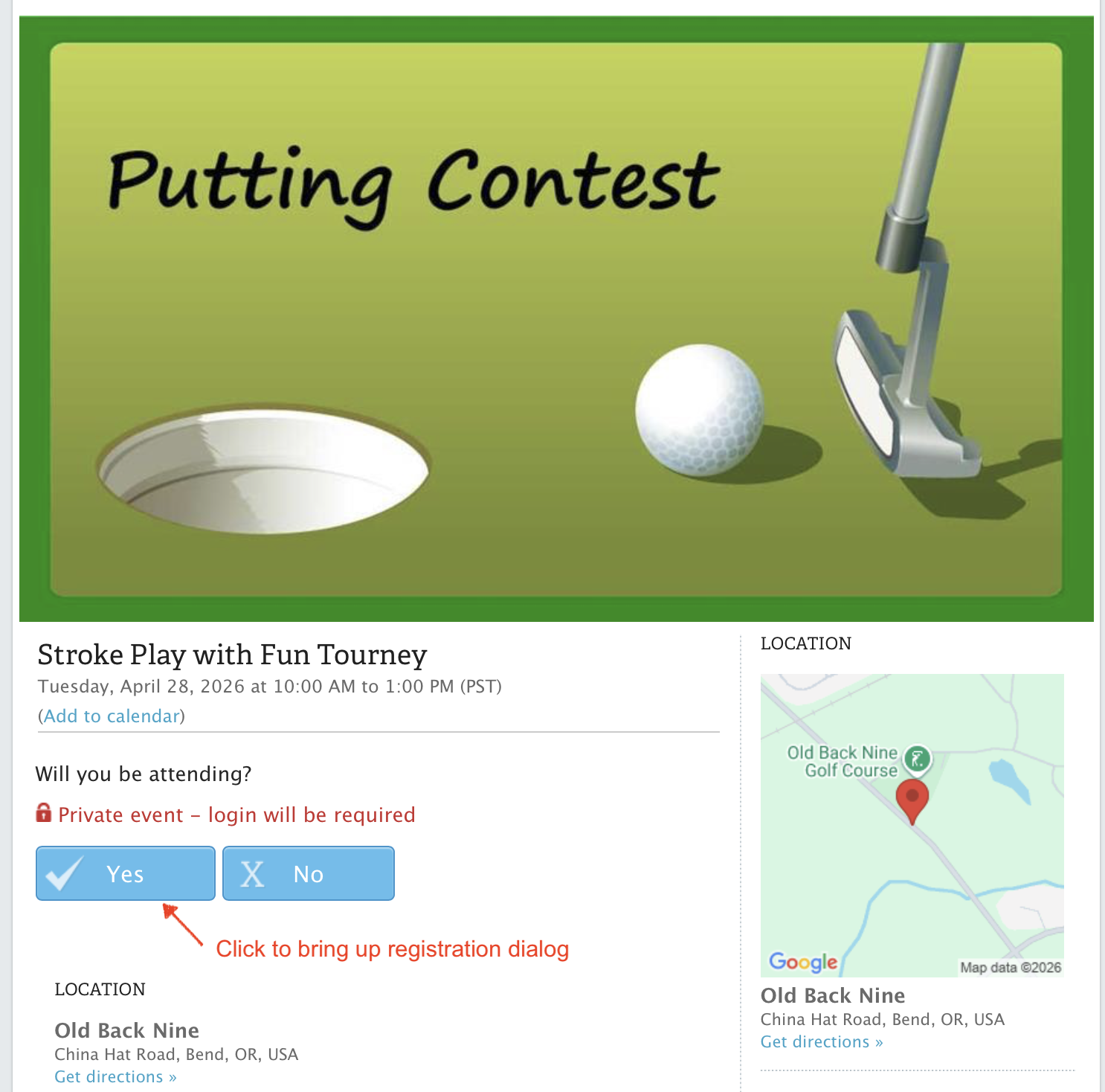
Event Page with options to change (YES) or cancel (NO)
3a. Clicking on the NO button will cause a page to be displayed that will ask you to confirm that you won't be attending. This is the method for cancelling a previous registration. (See that sequence under "How to CANCEL a reservation for an event" below.)
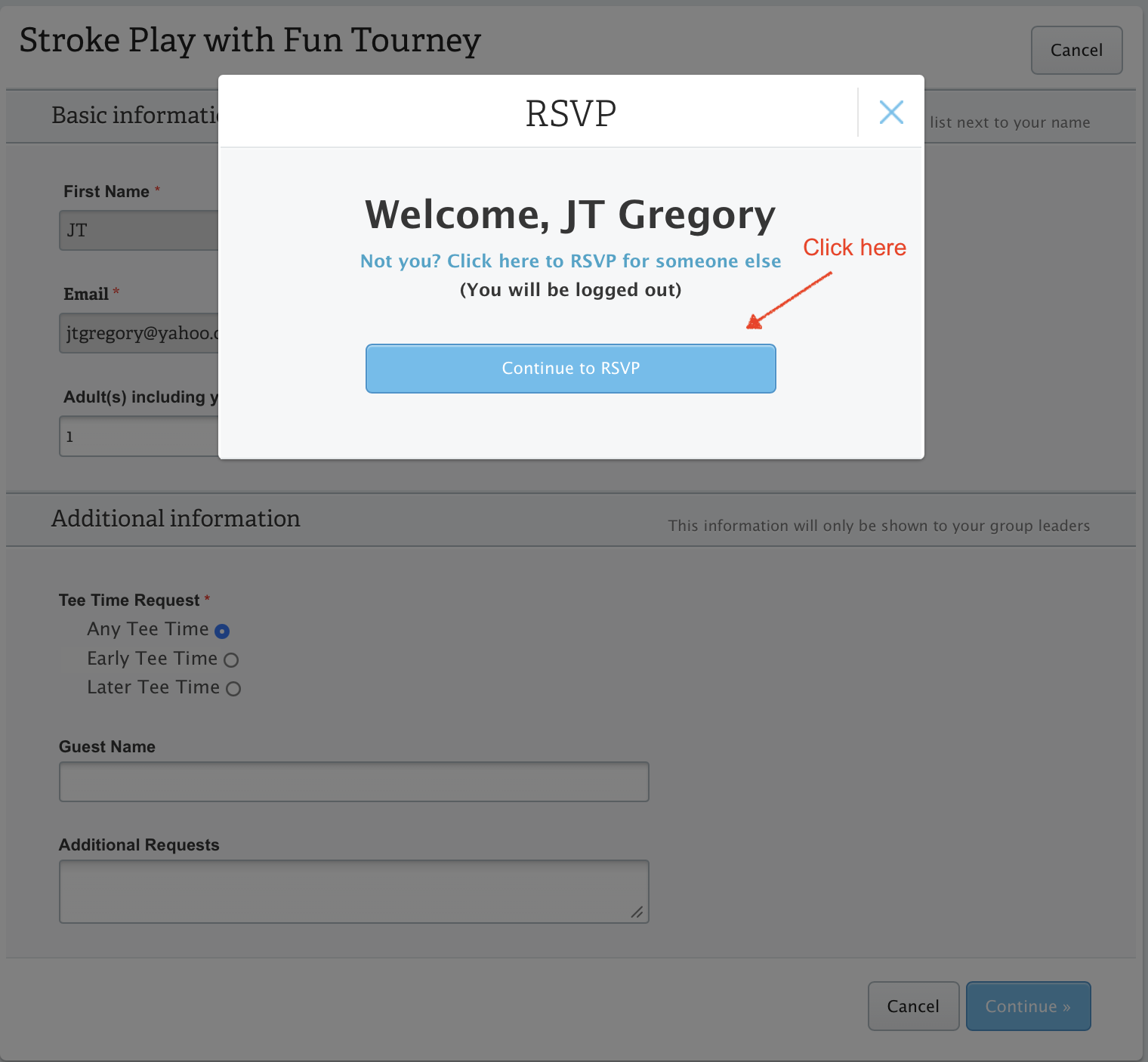
RSVP page with ID confirmation pop-up
3b. Clicking on the YES button will bring up the same registration page you saw earlier when you registered (after you click on the "Continue to RSVP" button confirming it's you). Here's where you get to change your tee time request, add a guest or make an additional request (like add in a playing partner request). Or remove a request you made previously.
NOTE: Simply putting a partner request in your RSVP will not register that partner. Both players will have to log on to their account and go through the registration process.
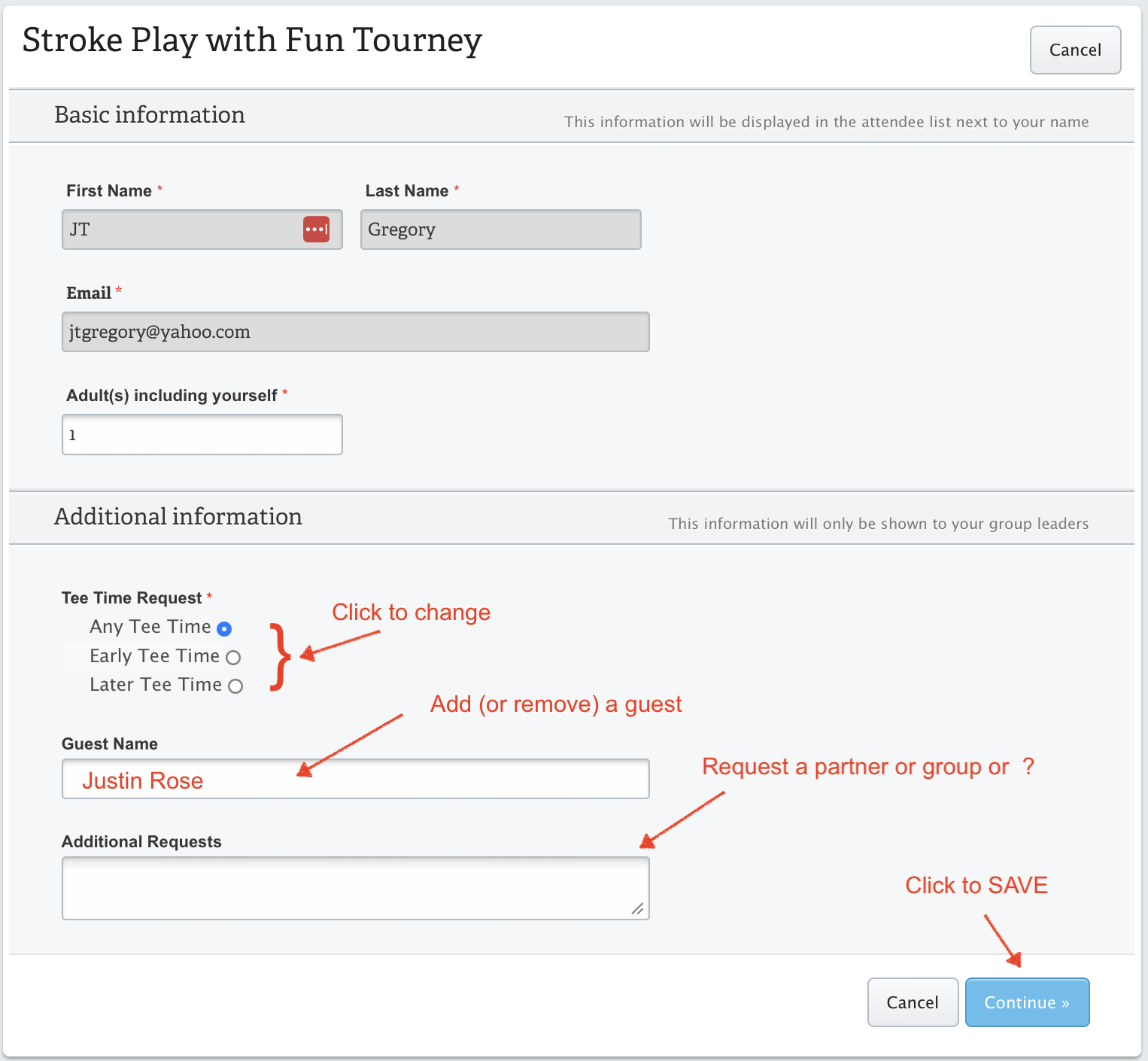
RSVP page
4. Make any other changes or additions, then click "Continue" to save your answers. A pop-up box will open noting that you have already registered for the event, and asks "Do you want to change your answer?" Click "Save" to do so.
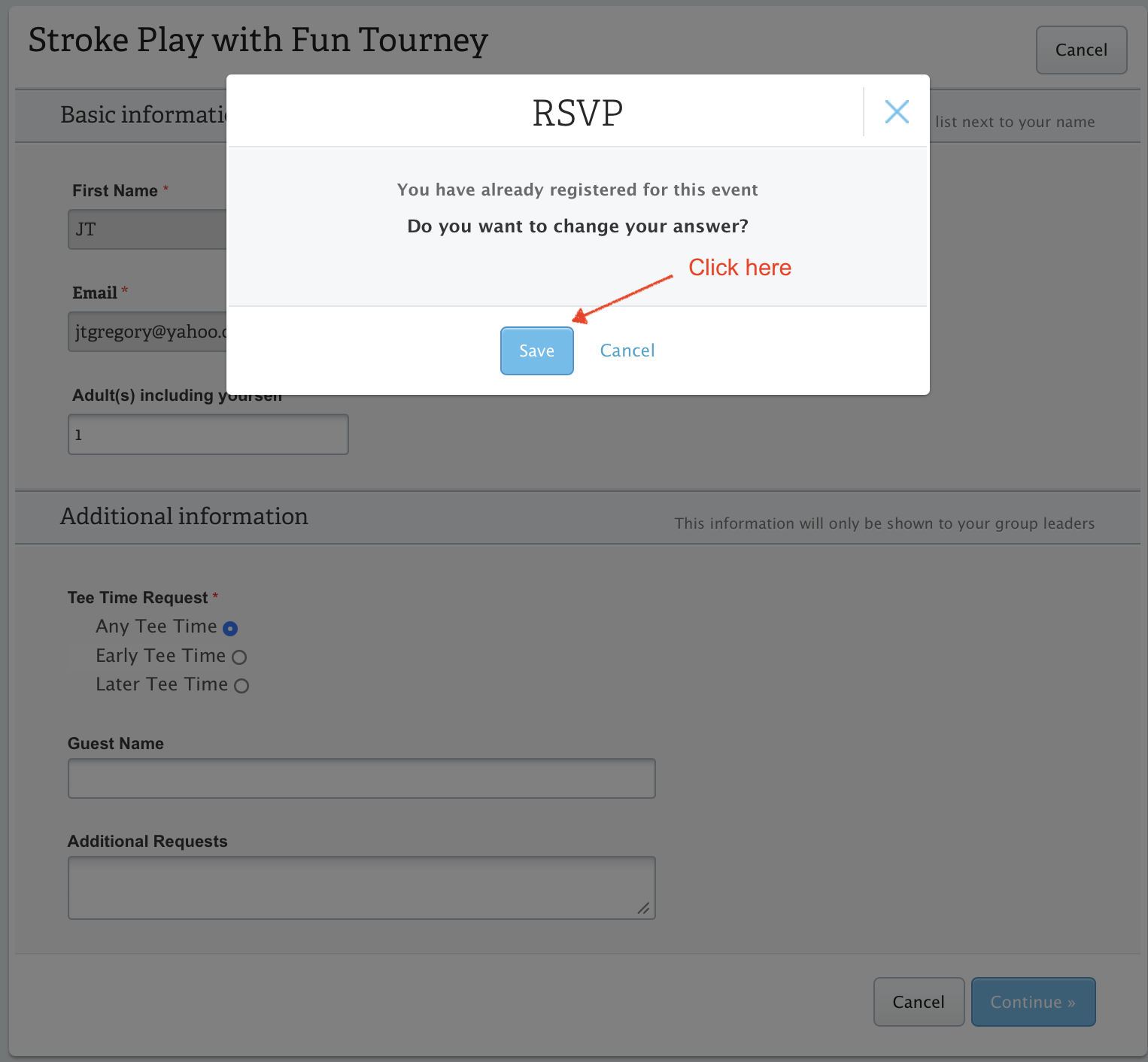
RSVP change confirmation pop-up
5. A new page will open that confirms your changes. You'll also get another confirmation email.
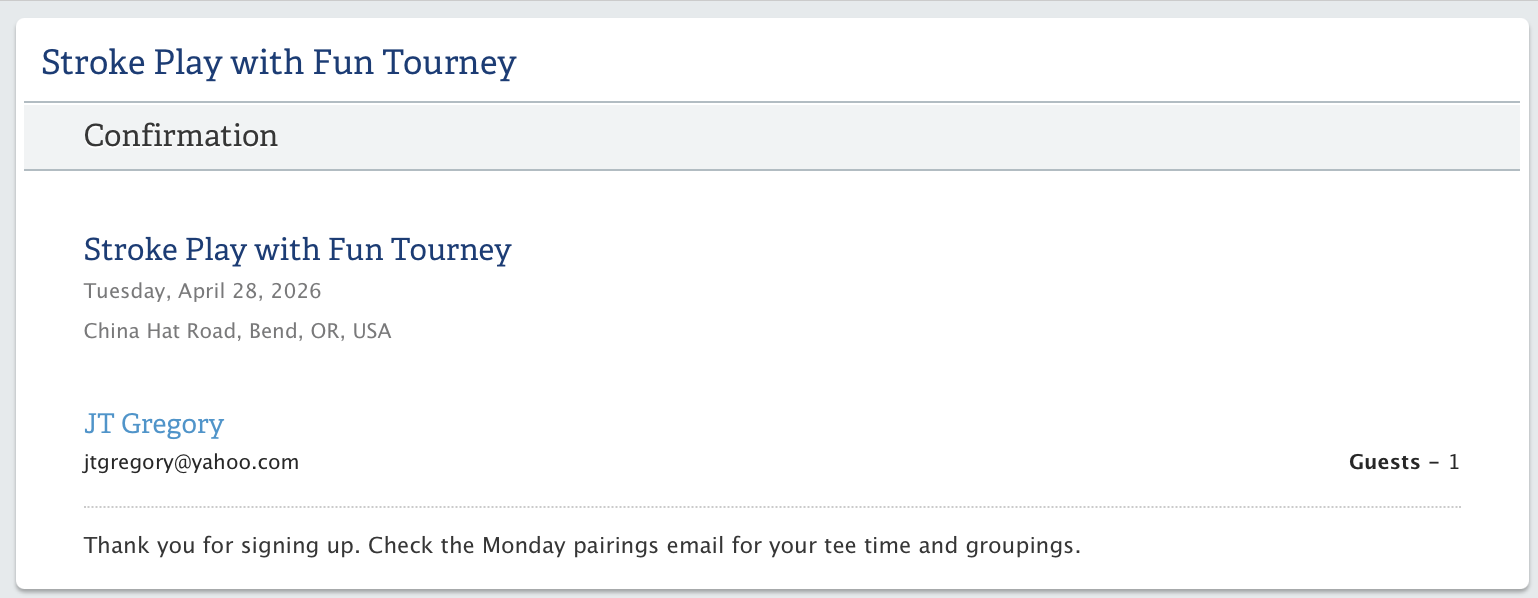
RSVP changes confirmed
How to CANCEL a registration for an event.
If you need to cancel, here's a quick review of alternative steps, based on timing. This list is valid only if you need to cancel an RSVP you've already made:
- Prior to 10 AM Monday, before registration closes for the next day's event, please use this website to cancel. Follow the instructions further below.
- Between 10 AM Monday and Tuesday morning, send an email to ob9league@gmail.com.
- On Tuesday morning, call the clubhouse at 541-382-1111 at least 45 minutes prior to the first tee time, so we can make arrangements to move golfers around if necessary.
Did you know? If you don't plan on attending an event, there is no need to RSVP with a "No" in the first place. You can just ignore the email invitation and the link within.
Cancelling a registration using oldbacknine.memberplanet.com:
You’re registered to play on Tuesday, but on Sunday (or before Monday 10 AM) you find out you can’t play. No worries. You can cancel your registration just as easily by following steps similar to the ones you used to register.
Logging on to the oldbacknine.memberplanet website takes you to your Dashboard. You can access the calendar there, or if you’re poking around the website checking out last week’s scores, you can always choose EVENT REGISTRATION under the EVENTS tab to get to the calendar.
To change your RSVP from “attending” to “not attending,” follow these steps:
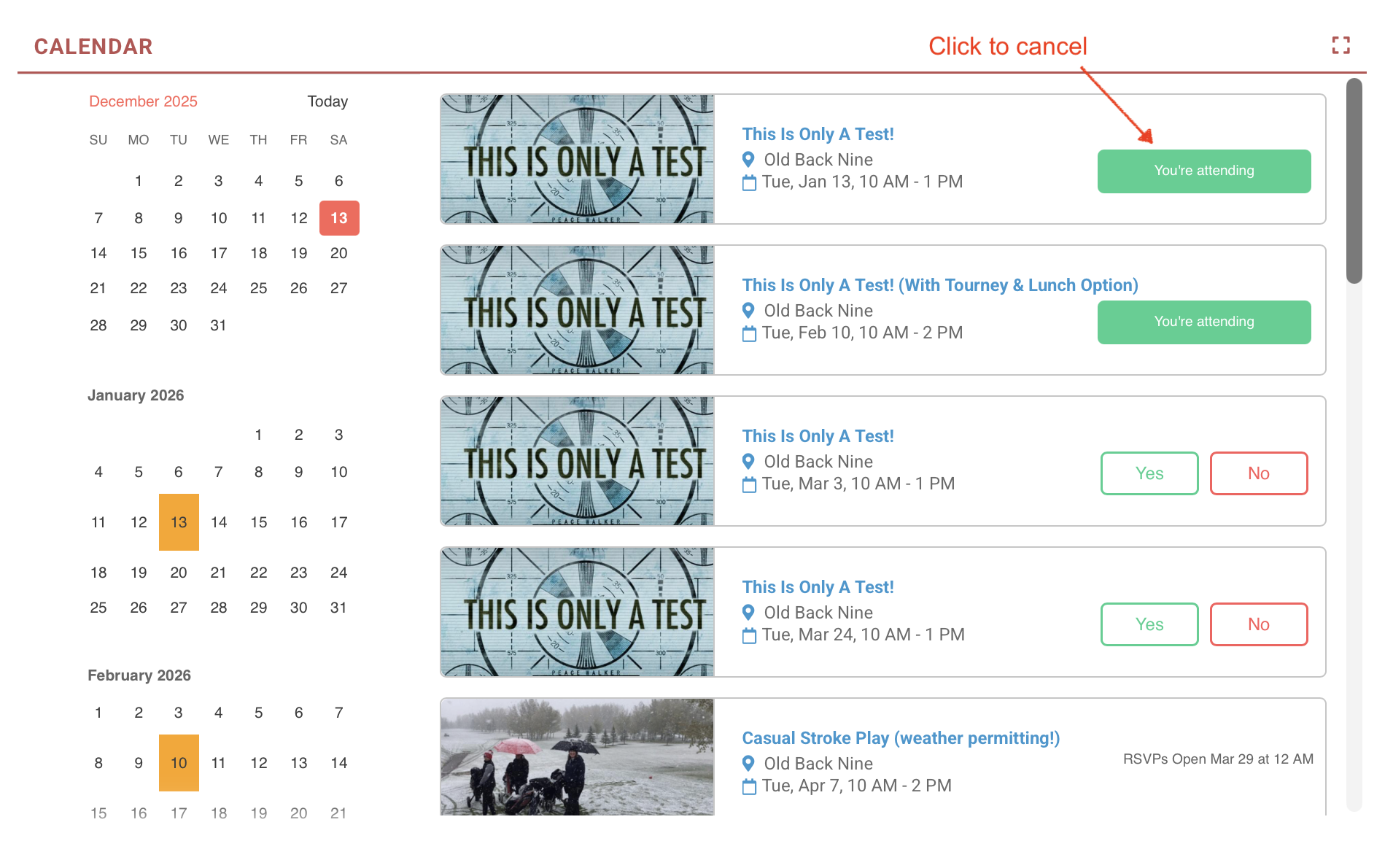
Dashboard (or EVENT REGISTRATION page)
1. Go to the event in the calendar that you have registered for, but need to cancel. Click on the green button labeled “You’re attending.” The event page will open.
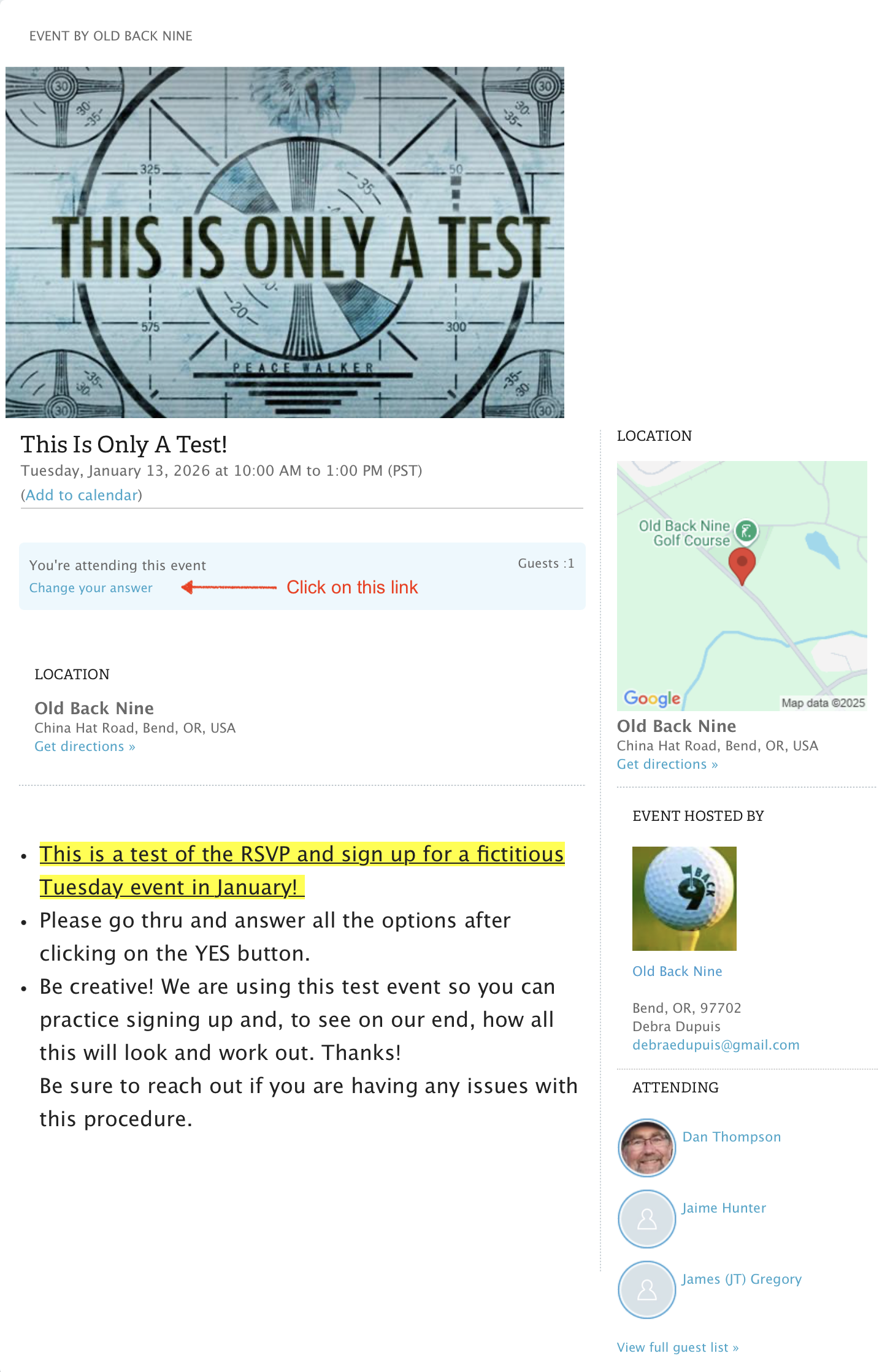
Event page
2. On the event page, click on the blue link under “You’re attending this event” that reads “Change your answer.” The link will be replaced by two buttons labeled YES and NO.
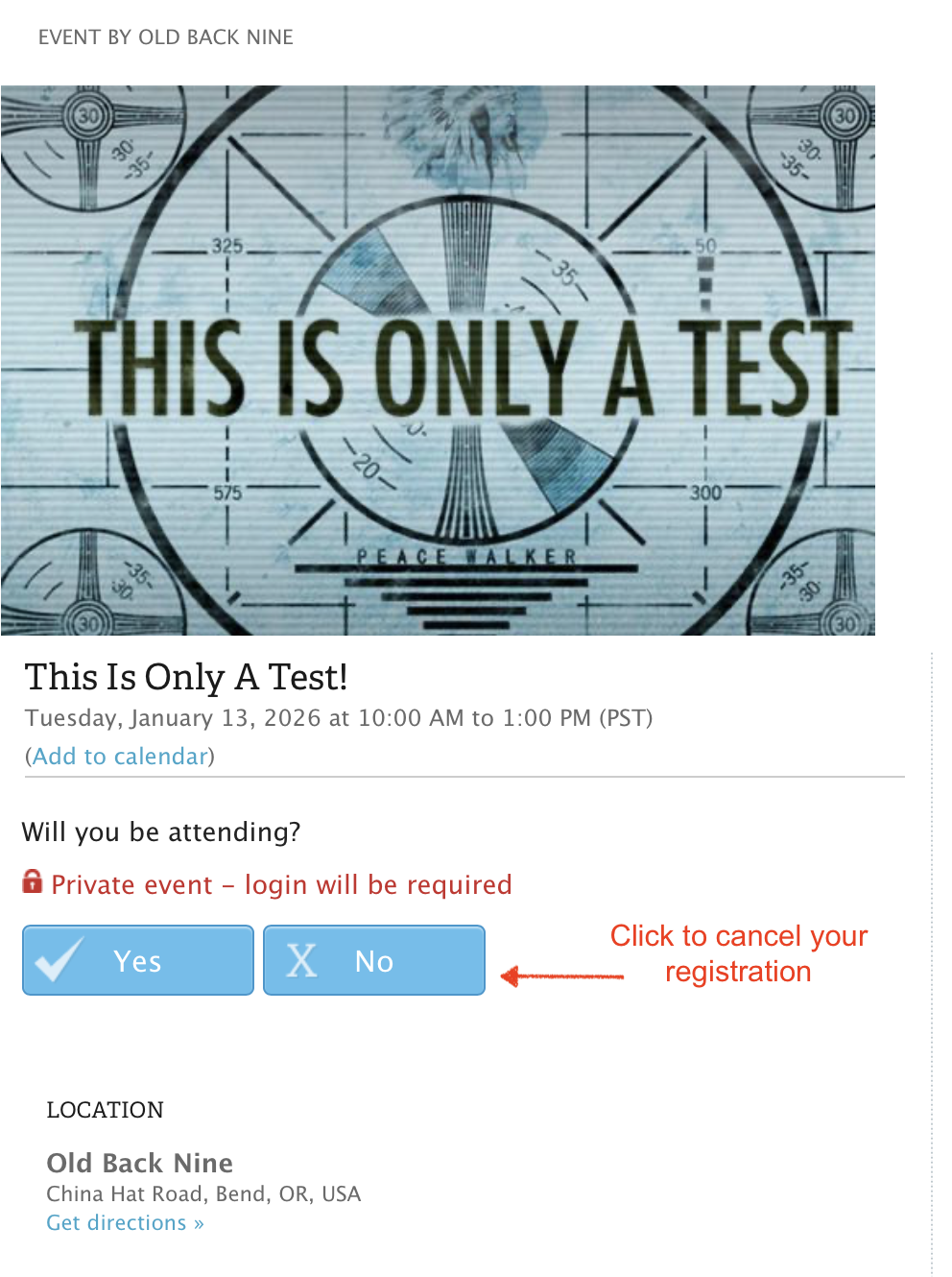
Event page with YES/NO options
3. Click on the box labeled NO. A message box will pop up stating, “You are replying that you will NOT be attending this event.”
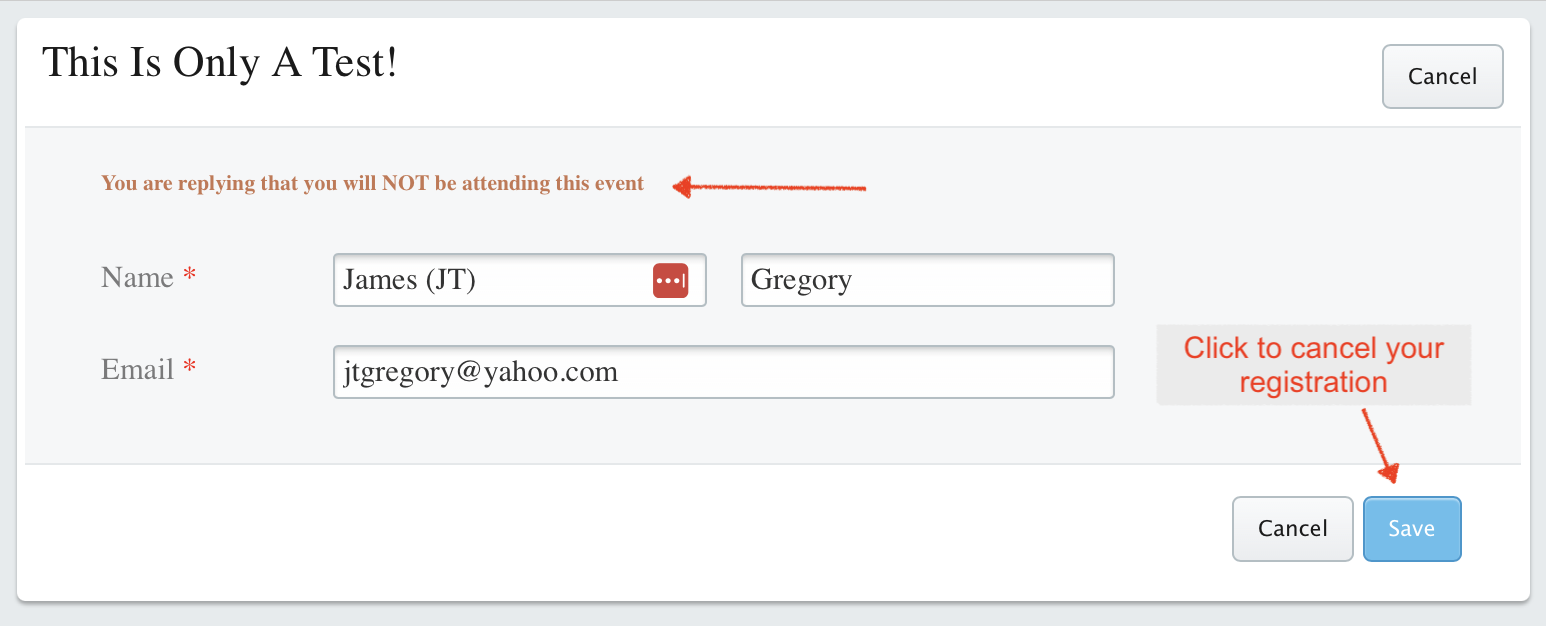
Cancellation reply window
4. Click on the SAVE button. A confirmation window will pop up. (If you click on either CANCEL button, it will take you back to the previous page without cancelling your registration. Confusing? Sorry, we didn’t design these steps.)
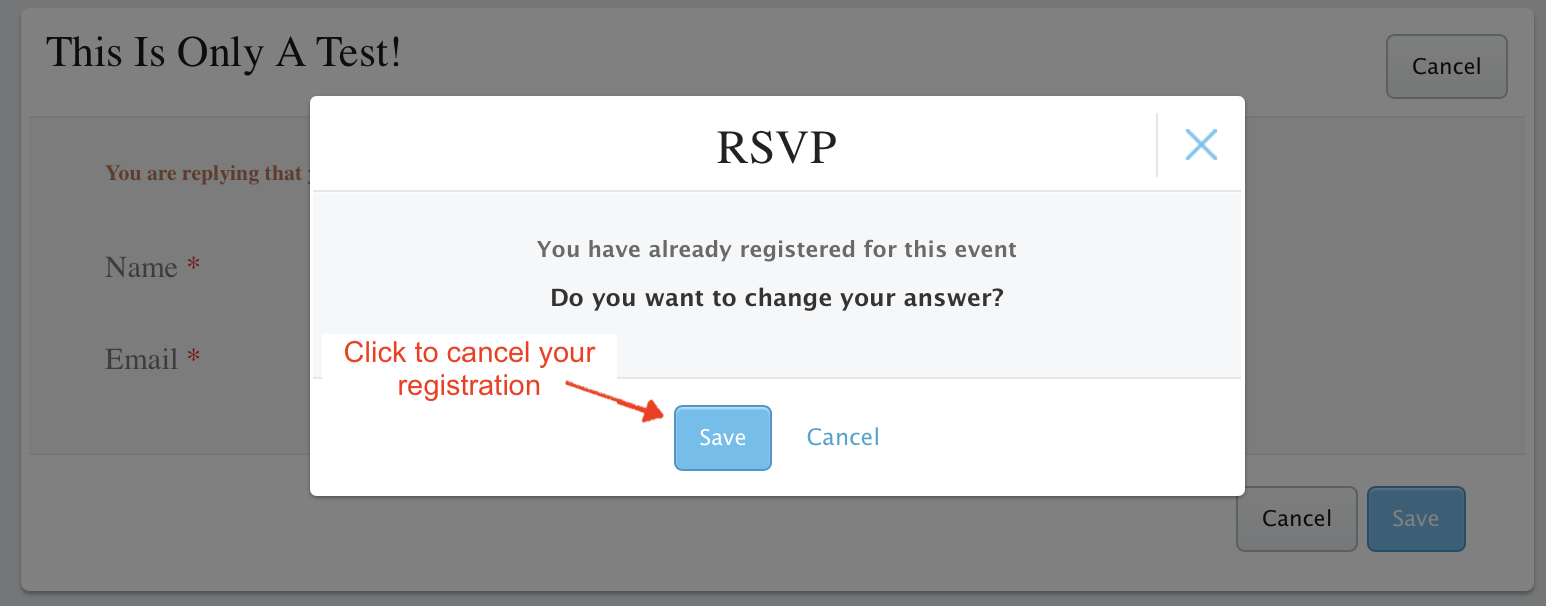
Cancellation confirmation window
5. Click on SAVE to cancel your registration. The Event page will reappear. (Again, clicking on CANCEL will send you back to the previous window.)
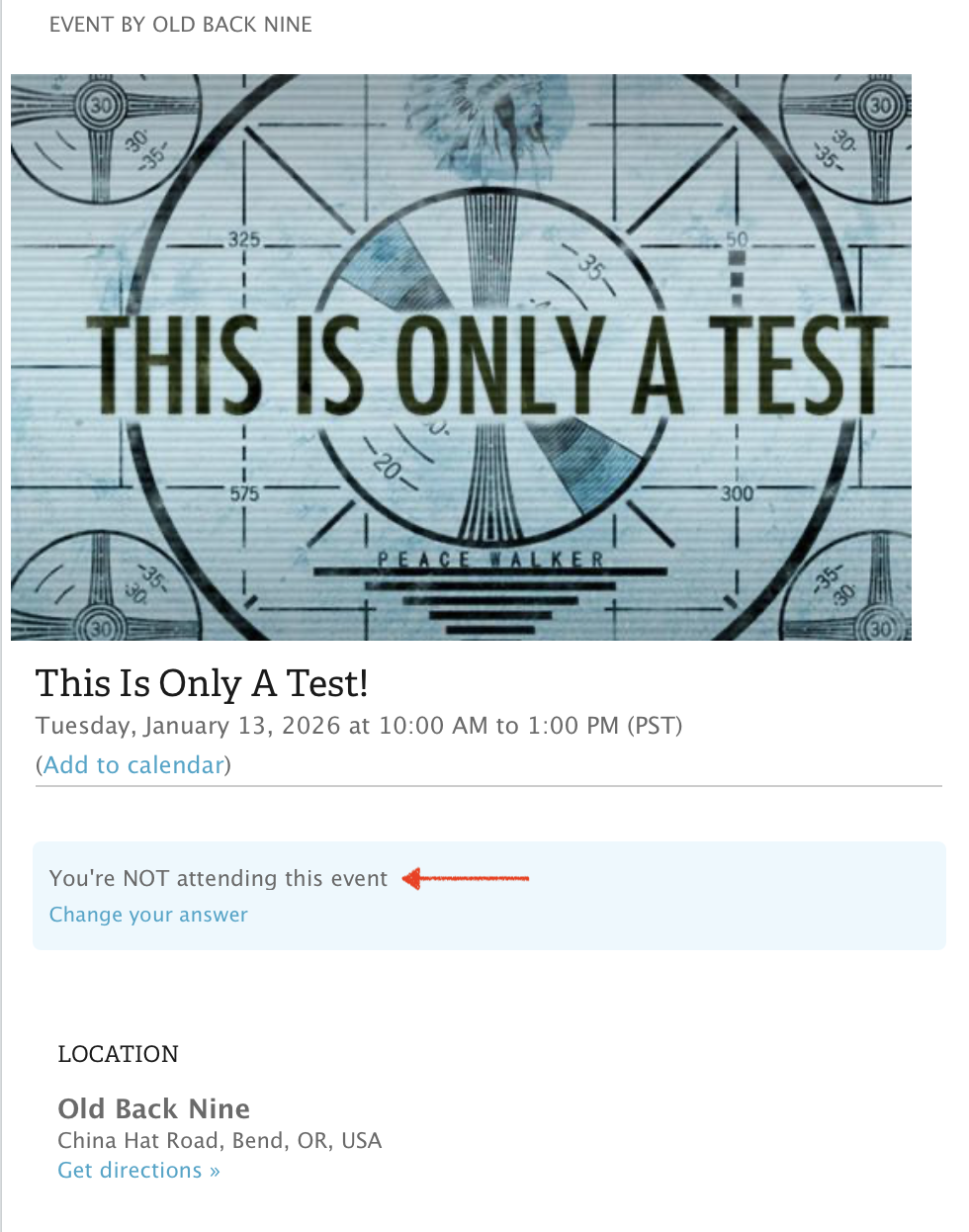
Event screen after confirming cancellation
6. The statement under the event title will have changed to “You’re NOT attending this event.”
If you’re on your computer’s browser, the Event page will have opened in a new tab. The rest of the registration and confirmation processes will occur on that page. Close the Event window and you’ll be returned to your Dashboard page or the calendar on the Old Back Nine’s registration page. If you’re using a phone, you might have to close the window and relog in to your Dashboard.
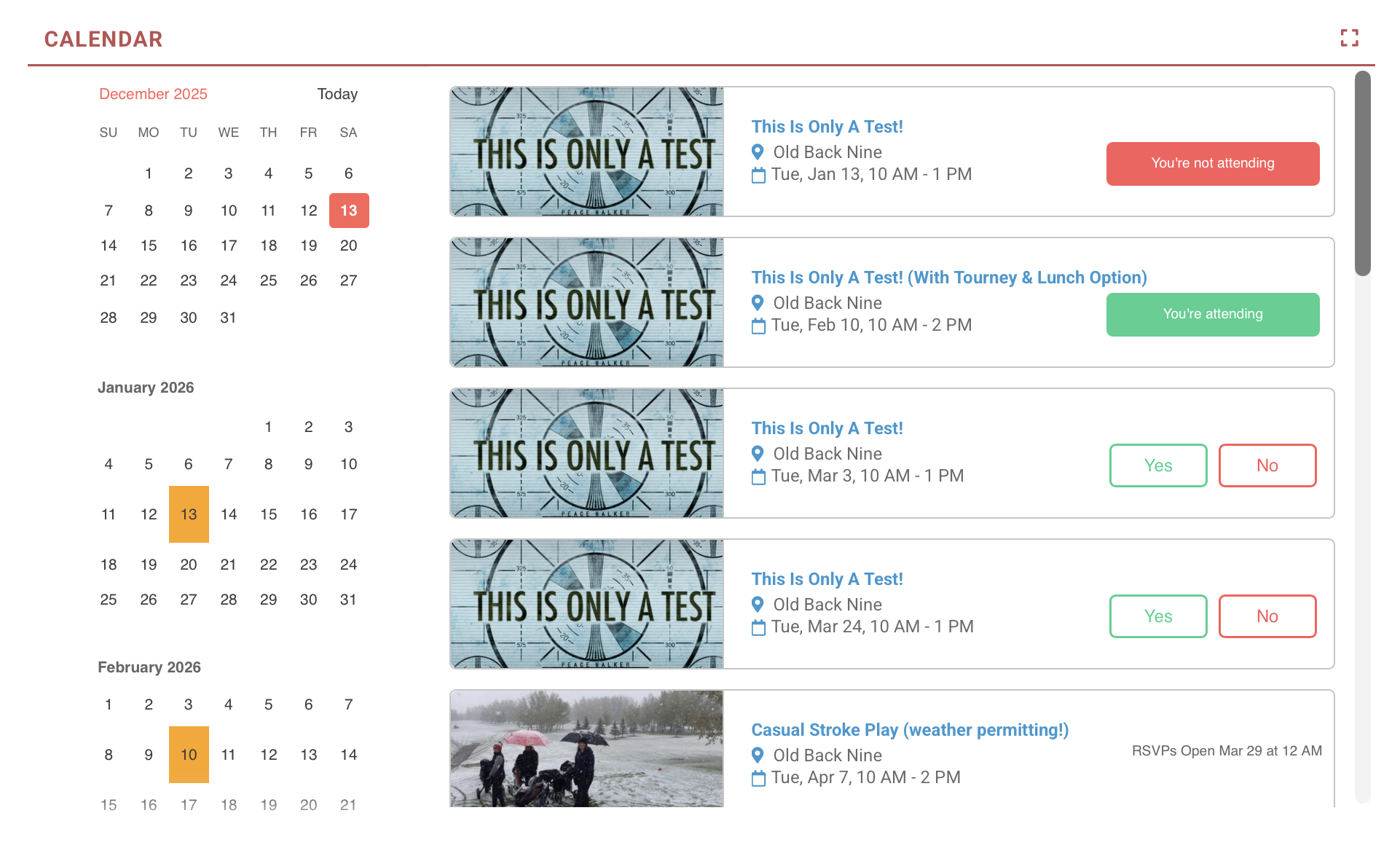
Calendar after confirming cancellation
7. Refresh the calendar page. The calendar page now shows the “You’re not attending” inside a red block.
If you're done, close the event window, or click "Log Out" along the top right next to your name. Check your email for a confirmation email.
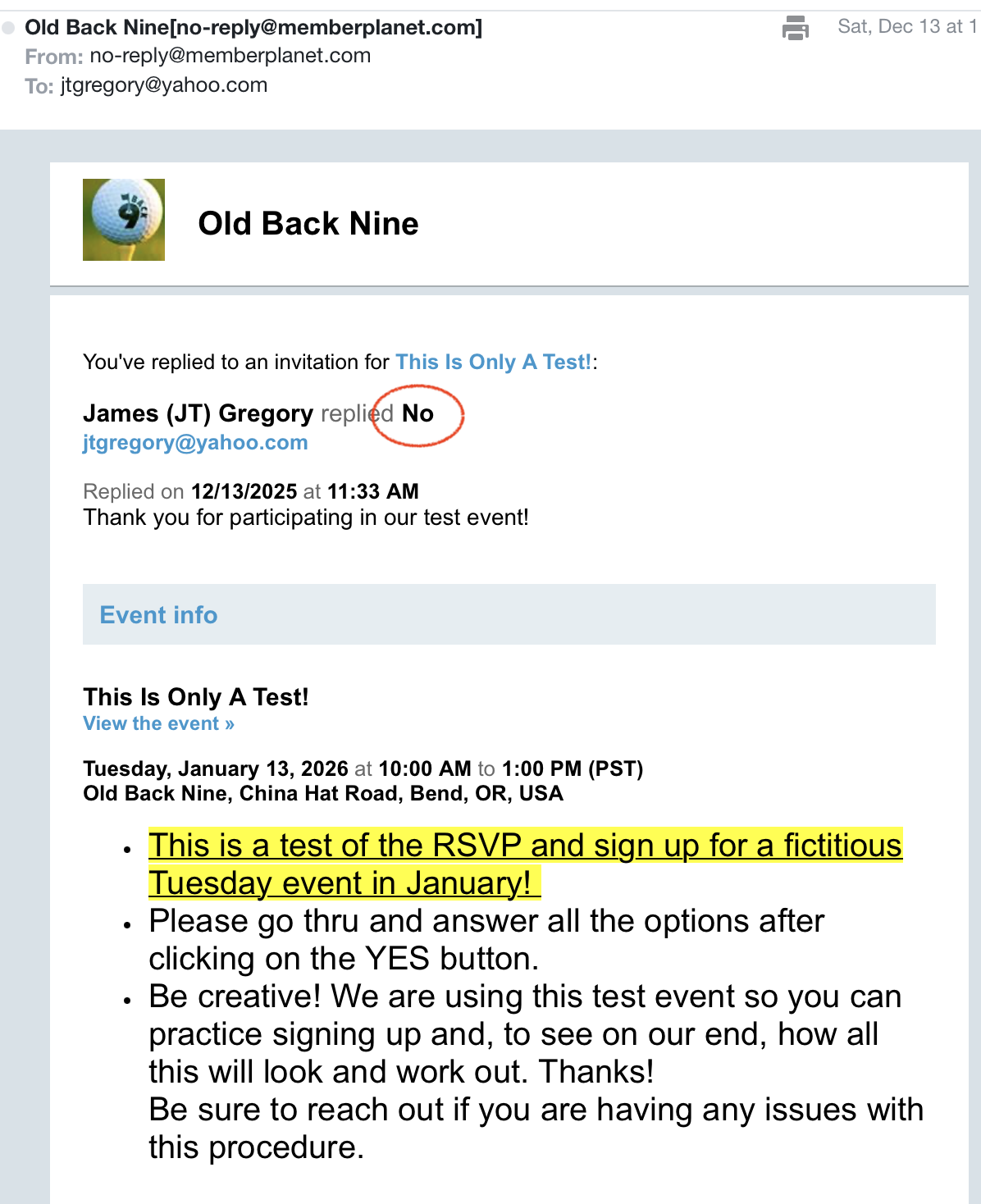
Cancellation confirmation email
The email will show that you’ve replied “No” to attending the event.
If it turns out later that you can attend the event, simply go through the steps of registering again. It will be slightly different, because instead of YES and NO buttons, you’ll have the button labeled “You’re not attending,” but after you click on it, the registration steps will be similar.
If you’re unable to get to the Internet to cancel for some reason, please call the clubhouse (541-382-1111) no later than 45 minutes prior to your tee time to cancel.
More helpful hints
Ends ‘n’ Odds ‘n’ Reminder thingies:
(We couldn't help but carry over these tips and contact info from our former newsletter. Useful or not – You be the judge.)
If you have signed up for a Tuesday round, especially for a team play day, and you find that you need to cancel for any reason, please do us the courtesy of letting us know by either:
- If it's a day prior or more, use the cancellations method described above.
- On the morning of, by contacting the clubhouse at 541-382-1111 at least 45 minutes before the first tee time.
A useful reference – cut these out and tape them onto the door of your fridge. Or use your favorite doggy magnet!
- You can email us at ob9league@gmail.com for league correspondence or queries.
- If you’re bringing a guest, please make sure they’re aware of their tee times as published on the Monday prior to the event.
- Questions about Old Back Nine operations? Call the clubhouse directly at 541-382-1111 or check out oldbacknine.com for rates, tee times, news and schedules.
If you play any non-league rounds, be sure to post them on the USGA/GHIN website, or download the free mobile GHIN app. The mobile app is free for iPhones or Android devices, and has the added benefit of showing distances to the pin using GPS maps. If you need any help loading the app on your phone, contact us before or after a round, and we’ll be glad to help.